Troubleshooting Mantle Mobile
Use these quick checks to resolve the most common issues. Each entry links back to the relevant guide when deeper context is required.
Cannot Log In
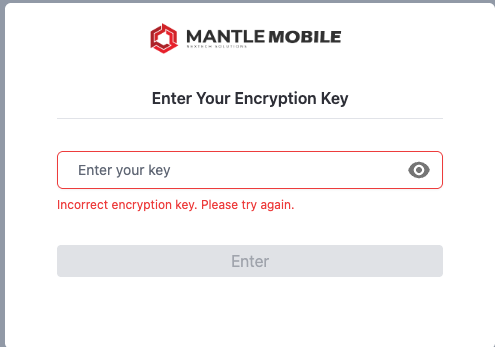
Symptoms: Encryption key rejected at launch.
Checks
- Verify the correct encryption key is being used for this workstation profile.
- Confirm initial database setup completed successfully (see Getting Started).
- If the key is lost, rebuild the database and re-import assets.
Enterprise Section Locked
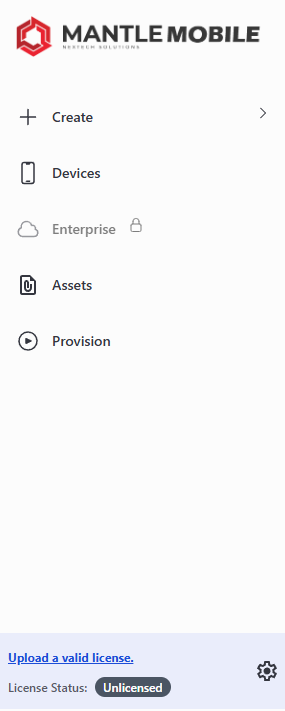
Symptoms: Enterprise navigation item shows locked badge.
Checks
- Upload a valid license under Settings > Licenses.
- Confirm license status is valid, signature verified, and not expired.
Device Tools Disabled
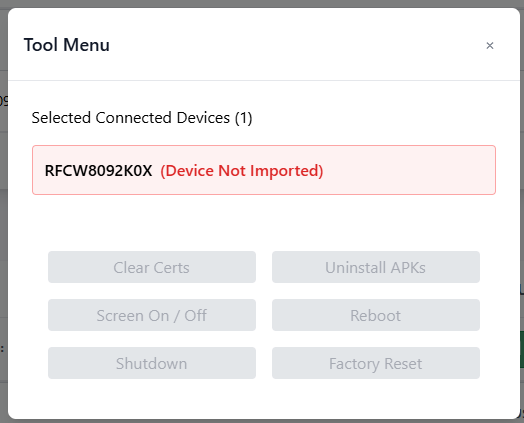
Symptoms: Tool actions disabled for selected connected devices
Checks
- Make sure the device is imported into the database (
Devices > Import Connected Devices). - Confirm the device is still connected over USB and visible under Connected Devices.
Provision Shows Missing Assets
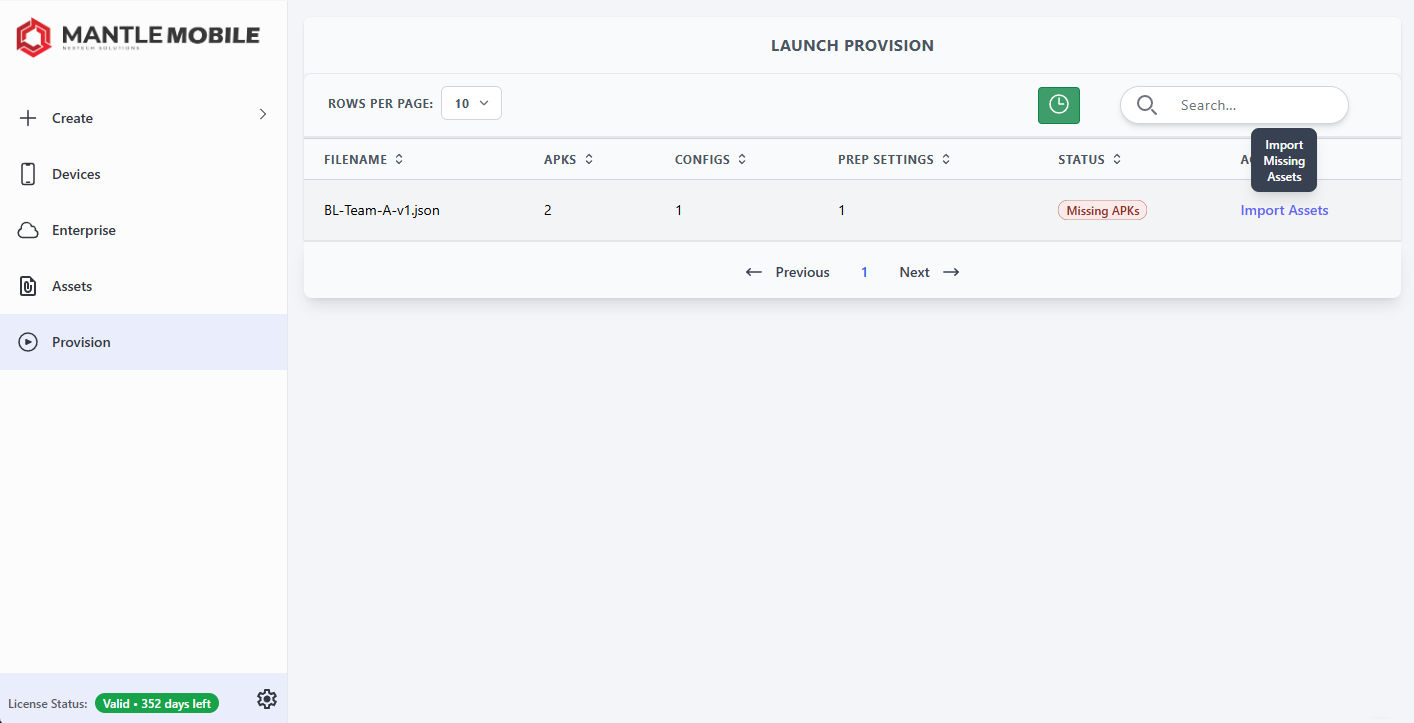
Symptoms: Baseline status shows Missing Assets
Checks
- Open
Provisionand selectImport Assetsfor that baseline. - Or import the missing APK or APK configuration in
Assetsmanually. - Re-check baseline status.
Provision Failure on Specific Devices
Symptoms: One or more devices fail while others succeed
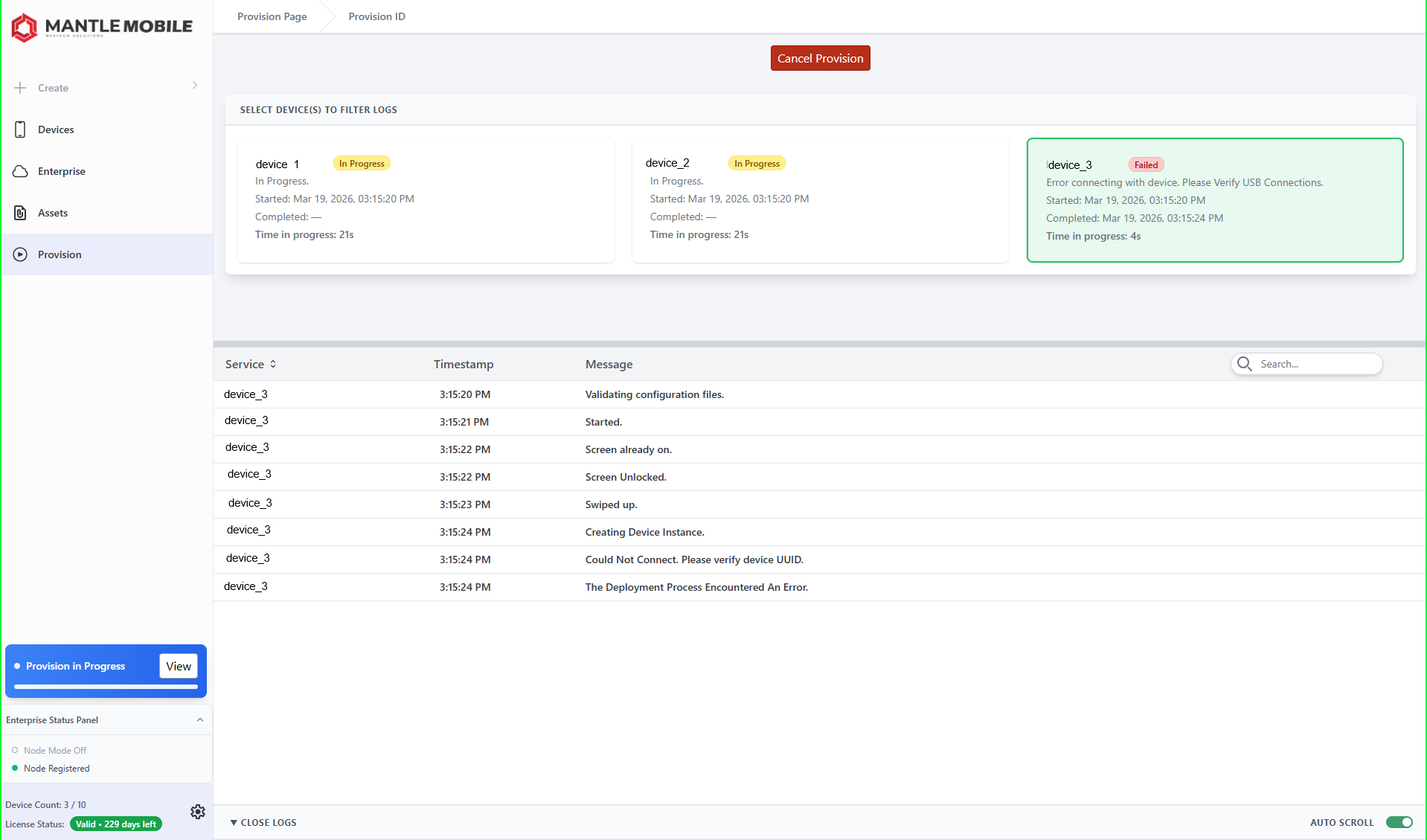
Checks:
- Open
Track Provision. - Filter logs to failed device Seriel Number(s).
- Identify the last successful task label.
- Update config task(s) or re-record task path.
Device Count Exceeds License Token Count
Symptoms: Blocking modal appears and workflow is halted
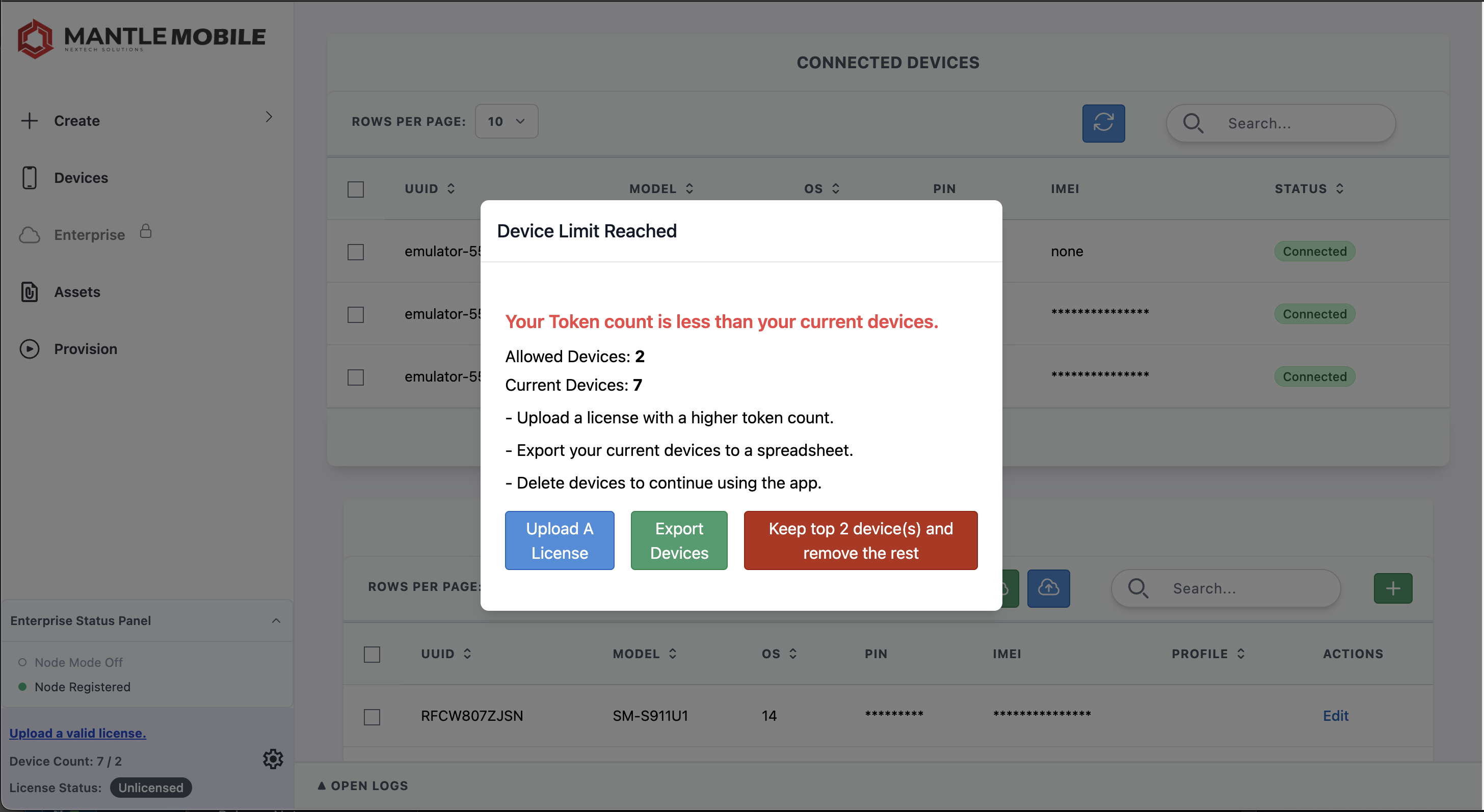
Resolution options:
- Upload license with higher token count.
- Export devices to spreadsheet for backup.
- Trim device list to allowed count.
APK Version Validation Blocks a Configuration
- Check the installed app's version against the version used to record the configuration.
- Under Settings > Settings, review Strict APK Version Validation. When enabled, the major versions must match.
- Install the matching APK, or re-record and test the configuration against the intended version. If you disable strict validation, test the full workflow before provisioning a batch.
APK Installation Waits for Verification
- Check the device for an Android verification prompt.
- Consider enabling Settings > Settings > Temporarily Disable APK Verification before the next run. Mantle Mobile re-enables verification after installation, including failure or cancellation.
- If logs report that Verify ADB Installs could not be changed, resolve the prompt on the device.
A Profile Will Not Save or a Variable Is Wrong
- Check for duplicate variable names (case-insensitive), missing names, or empty values.
- Reserve
global_names for the Global Profile. In a regular profile, reference global variables in the value builder instead of creating a variable with that prefix. - Do not name custom variables
uuid,serial,pin,model,imei, orOS; these are reserved device property names. - Enable Expose Device Properties and select a reference device to check the preview. Verify the target device's record and profile priority before provisioning.
Enterprise Connection Stops or Node Mode Turns Off
Read the Enterprise status message before retrying. Connection errors, missing node registration, and expired tokens are reported separately. A failure disables Node Mode. Follow Connection Failures and Recovery, then enable Node Mode again.
GUI Crash
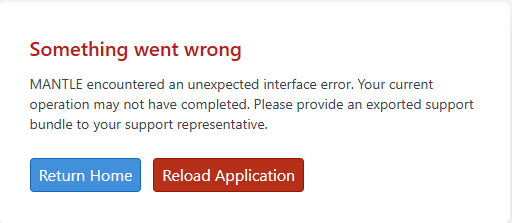
Upon a GUI crash, you can either:
- Return Home (Terminates background processes and returns to Devices page.)
- Reload Application (Terminates the application and returns user to login screen.)
Export Logs for Support
From tracking/log views, export logs and include:
- app version
- OS version
- device models involved
- exact time of failure
