Mantle 2.0 Guide: Inventory and Kit Configurations
Overview
Open Inventory from the sidebar to manage reusable deployment settings, systems, and automation inputs.
| Tab | Contents |
|---|---|
| Kit Configurations | Reusable General, network, platform, and Flow settings. |
| Items | Systems, identity information, and management connections. |
| Item Groups | Saved selections of Inventory Items. These are not permission Groups. |
| Ansible Inventory | Named sets of typed automation variables. |
Management actions depend on your account's permissions.
1. Inventory Items
- Open Inventory → Items and select Create Inventory Item.
- Enter Display Name and select Type.
- Add the hostname, serial number, MAC address, manufacturer, and model as applicable.
- Add the system or controller connections needed by your workflow, including the appropriate protocol and connection details.
- Select Create Inventory Item.
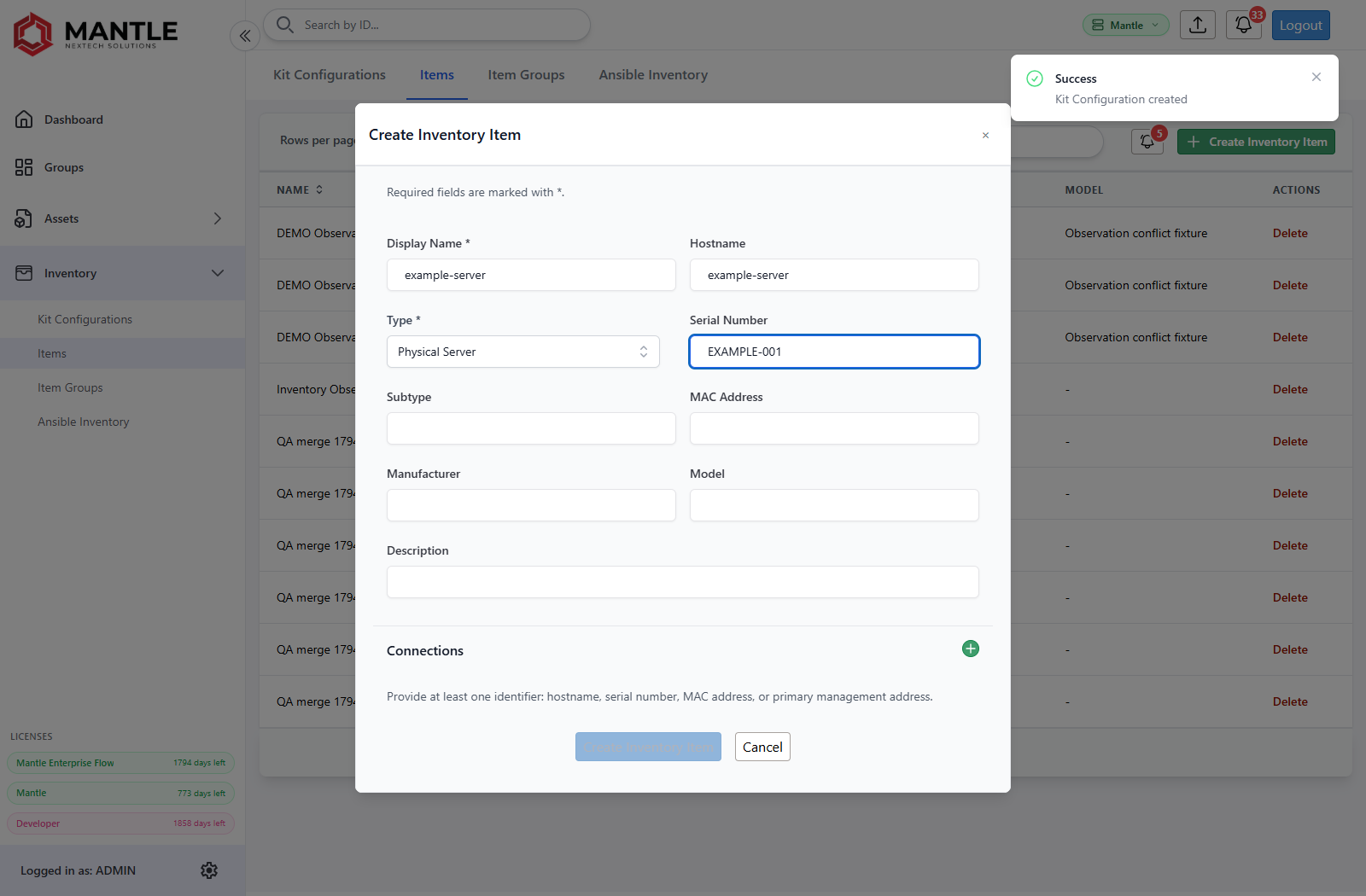
Open an existing item to review its details or edit it. Select Save Inventory Item after editing. Enter credentials only where needed, not in names or descriptions.
Inventory also receives observations and configuration snapshots from deployments. Review conflicts before resolving them; a reported value is not automatically the intended configuration for the next run.
Snapshots, observations, and conflicts
Open an item's Snapshots section and select a snapshot to inspect its saved values. The observation log identifies the source and reported values so you can distinguish current inventory from deployment history.
When an observation cannot be assigned safely, authorized users can open Inventory conflicts on the Items table:
- Choose an entry in Inventory Conflicts to open Resolve Inventory Observation.
- Compare Current Value with Reported Value for the candidate items. An item marked Cannot update is not eligible for that update.
- Select the intended item and choose Update Selected Item.
- Review Apply reported values? and select Apply update, or Keep reviewing to return without applying it.
Only the selected item is updated. If the report should be rejected, enter Dismissal reason (required) and select Dismiss instead.
2. Item Groups
- Open Inventory → Item Groups and select Create Item Group.
- Enter Group label and select existing Inventory Items.
- Review the generated Ansible group name. The label is for display; the Ansible name is used in generated inventories and playbook targets.
- Select Save Item Group.
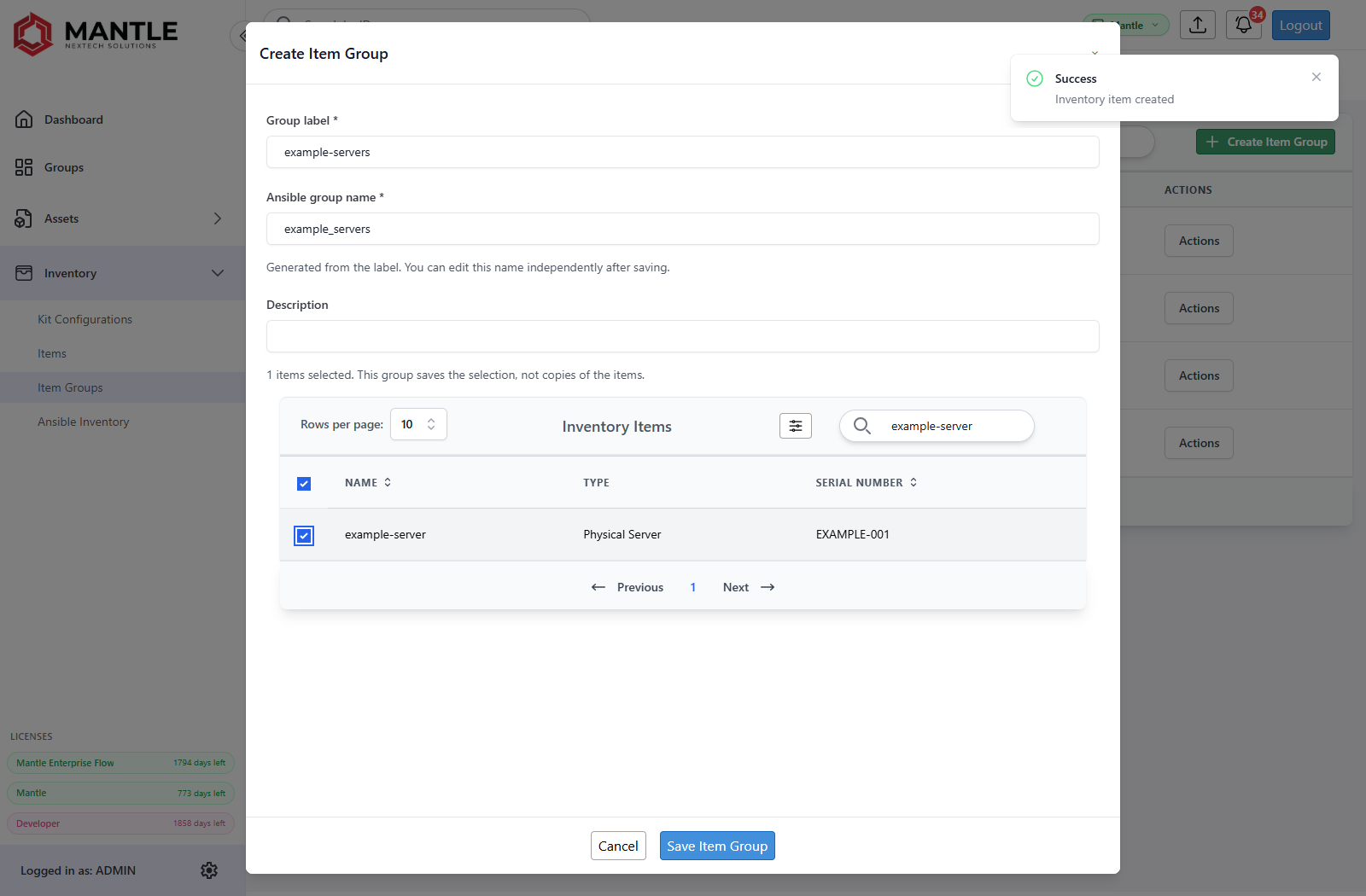
Use Actions → Edit to change a selection. Deleting a group leaves its items intact. Deleting an item removes its membership from groups; review the confirmation first.
Changing a group's display label does not automatically change its Ansible group name. Review that name separately when editing an existing group.
3. Ansible Inventory
- Open Inventory → Ansible Inventory and select Create Ansible Inventory.
- Enter Name, then add variable keys, types, and values.
- Select Save Inventory.
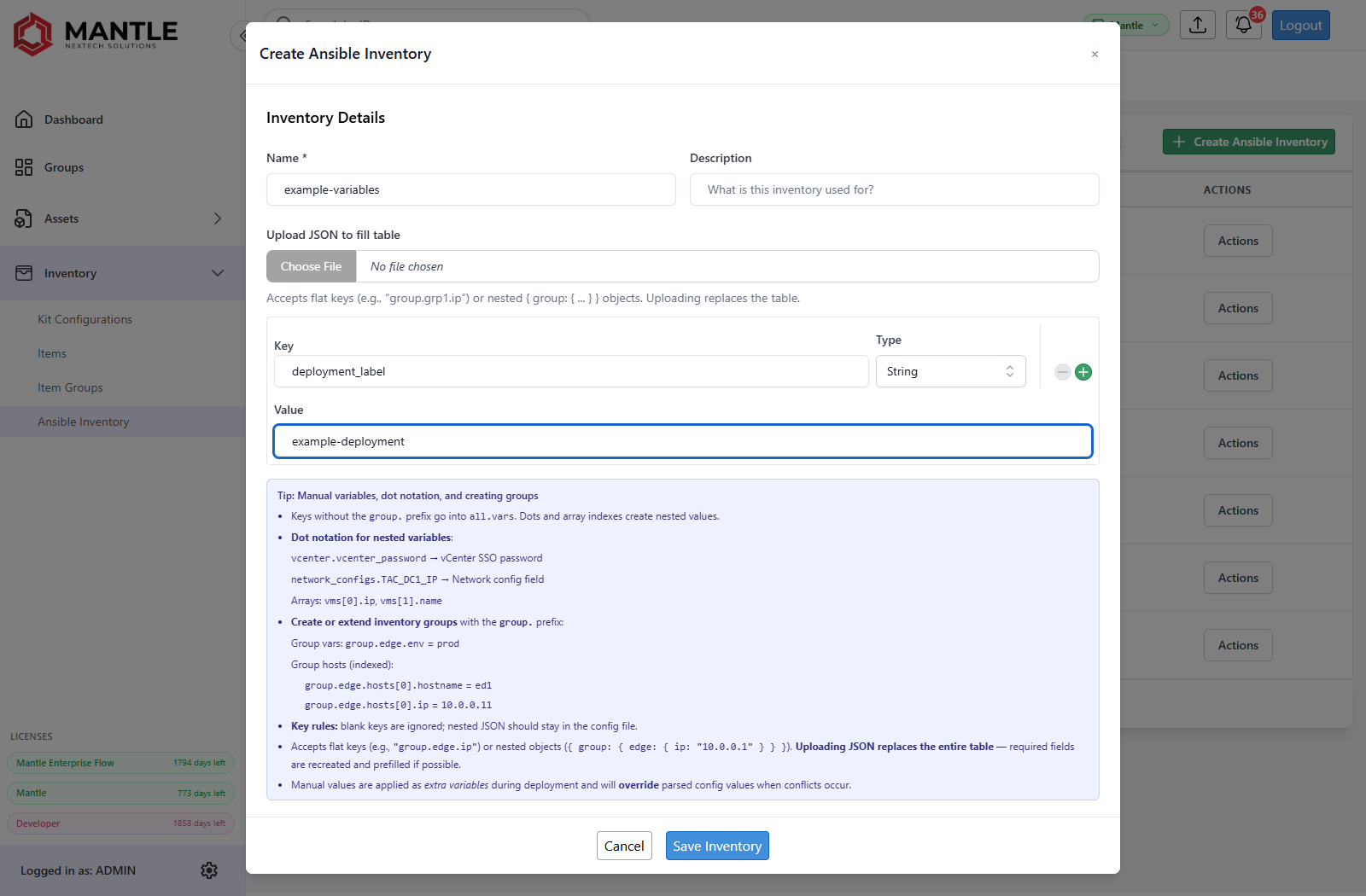
Use Actions > Export YAML to download the saved inventory. Selecting a saved inventory in an editor replaces that editor's variables; edits there apply to the current run rather than changing the saved source.
Use these variables in a Flow or a Flow step in a Plan. Review resolved inputs and overrides before deployment, especially when combining sources.
4. Kit Configurations
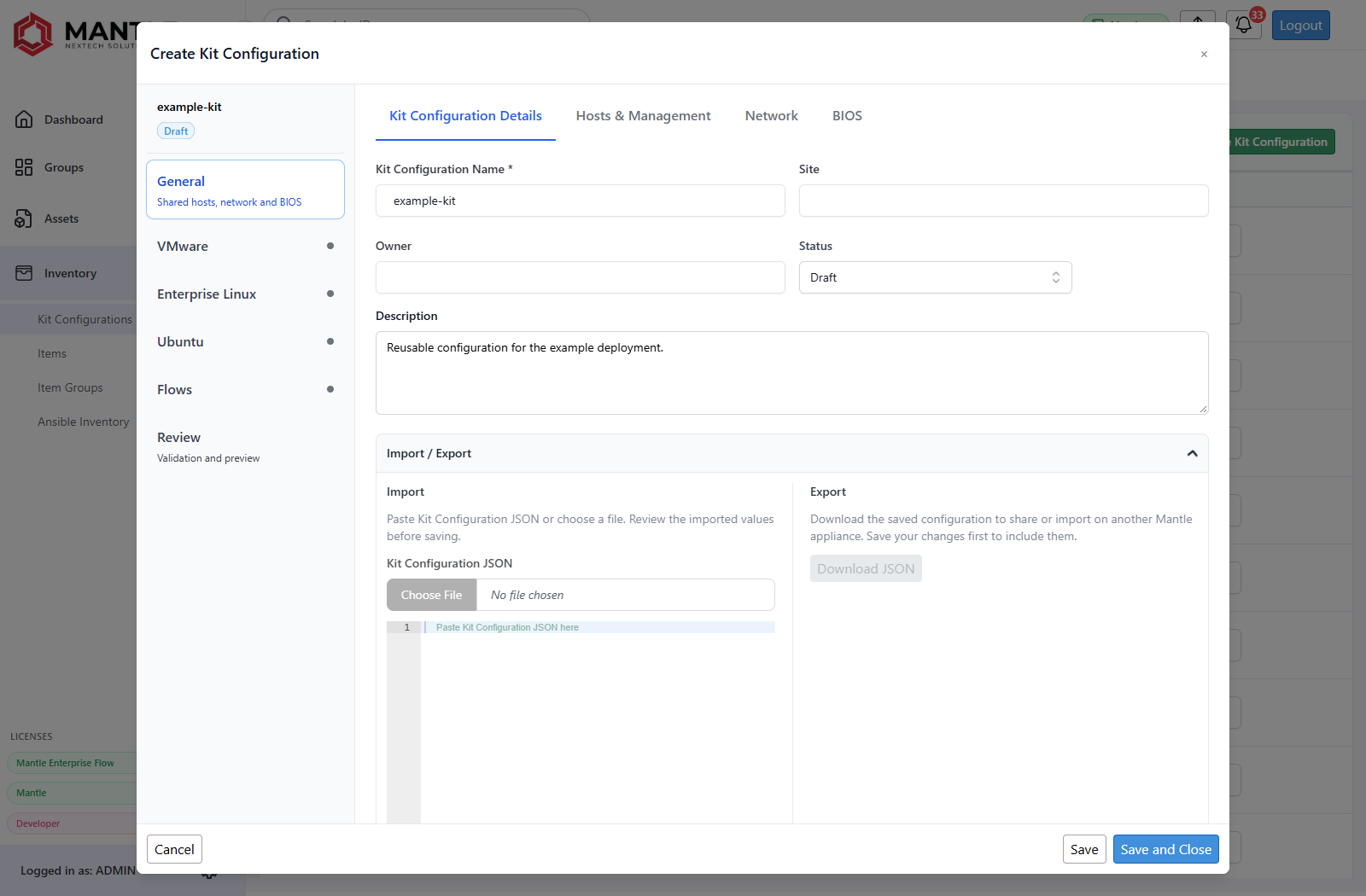
- Open Inventory → Kit Configurations and select Create Kit Configuration.
- Under General → Kit Configuration Details, enter Kit Configuration Name. Optionally add Site, Owner, and Description, and choose Status.
- Use Hosts & Management for shared hosts and management settings.
- Configure Network or BIOS under General when required.
- Open VMware, Enterprise Linux, or Ubuntu, enable the required platforms, and complete their settings.
- Configure Flows if the Kit should supply saved automation settings.
- Open Review to inspect validation and the configuration graph.
- Select Save to keep editing, or Save and Close to return to the table.
Hosts and platform settings
Use all General hosts applies the General host selection to a platform. Review the platform host controls when it should use only some hosts.
Use Load Configuration... to start a platform from New Configuration, Previous Build, or Build JSON. Review imported values and resolve differences before saving.
Use Validate Platform, Validate Network, or Validate BIOS as appropriate. Complete required setup, including PXE settings for workflows that use PXE. A saved draft is not proof that every platform is ready to deploy.
Import and export
Under General → Kit Configuration Details → Import / Export:
- Use Kit Configuration JSON and Import JSON to import saved settings. Confirm the import or replacement and review before saving.
- Use Download JSON to export a saved configuration. Save edits first to include them.
Review credentials and asset references when moving settings between appliances. Importing a configuration does not install its referenced assets.
Reuse and lifecycle
Use Actions → Duplicate to start from an existing Kit. Draft, Published, and Retired describe the reusable configuration, not an active deployment's state.
Deleting a Kit Configuration removes its saved settings and credentials, while leaving Inventory Items intact.
5. Use inventory in a deployment
Create a Plan, then drop Kit Configuration onto a target to apply saved setup. Drop Inventory Item, Item Group, or Ansible Inventory onto a compatible Flow step to supply inputs.
Inventory is also available through the Flow wizard. Review final variables and targets before selecting Deploy. Saving inventory or a Kit never starts a deployment.